
What are roles?
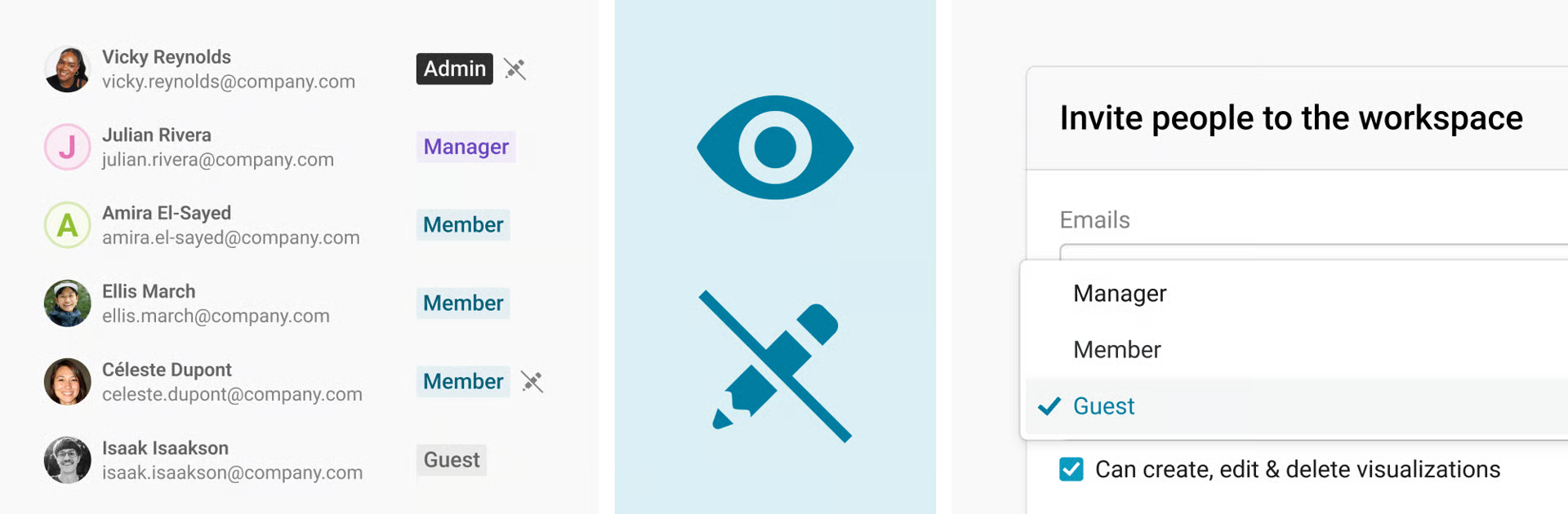
In Datawrapper, the role of an account determines what a user can access and change, on the workspace and team level. Admins and managers can make decisions about the whole workspace or team, while members and guests are able to focus on visualizations.
Workspace roles
The workspace-level role indicates the maximum level of access a user has within the workspace. Admins have the most permissions, and Guests are the most restricted:
 Everyone in the workspace, from guests to members to managers and admins, will be able to create and edit visualizations, if they have edit access. Edit permissions can be granted independently from the role: You might add guests who can created and edit visualizations, and managers and admins who can't. If you're curious about edit permissions, check this article out.
Guest
A workspace guest only has access to the teams they're added to explicitly. Within those teams, they can view and comment.
Member
Workspace members can view and comment in the teams they're added to. They also can browse and join public teams without an invitation. Public teams are teams that are visible to all members, managers, and admins in a workspace.
Manager
Managers of a workspace have all of the access that workspace members have, but can also create, edit, and delete teams, and manage members within the workspace: Managers can change member permissions, and invite and remove members.
Admin
Workspace admins have access to everything managers do. They can also manage any billing and subscription details, and rename or delete the entire workspace.
How to change someone's role
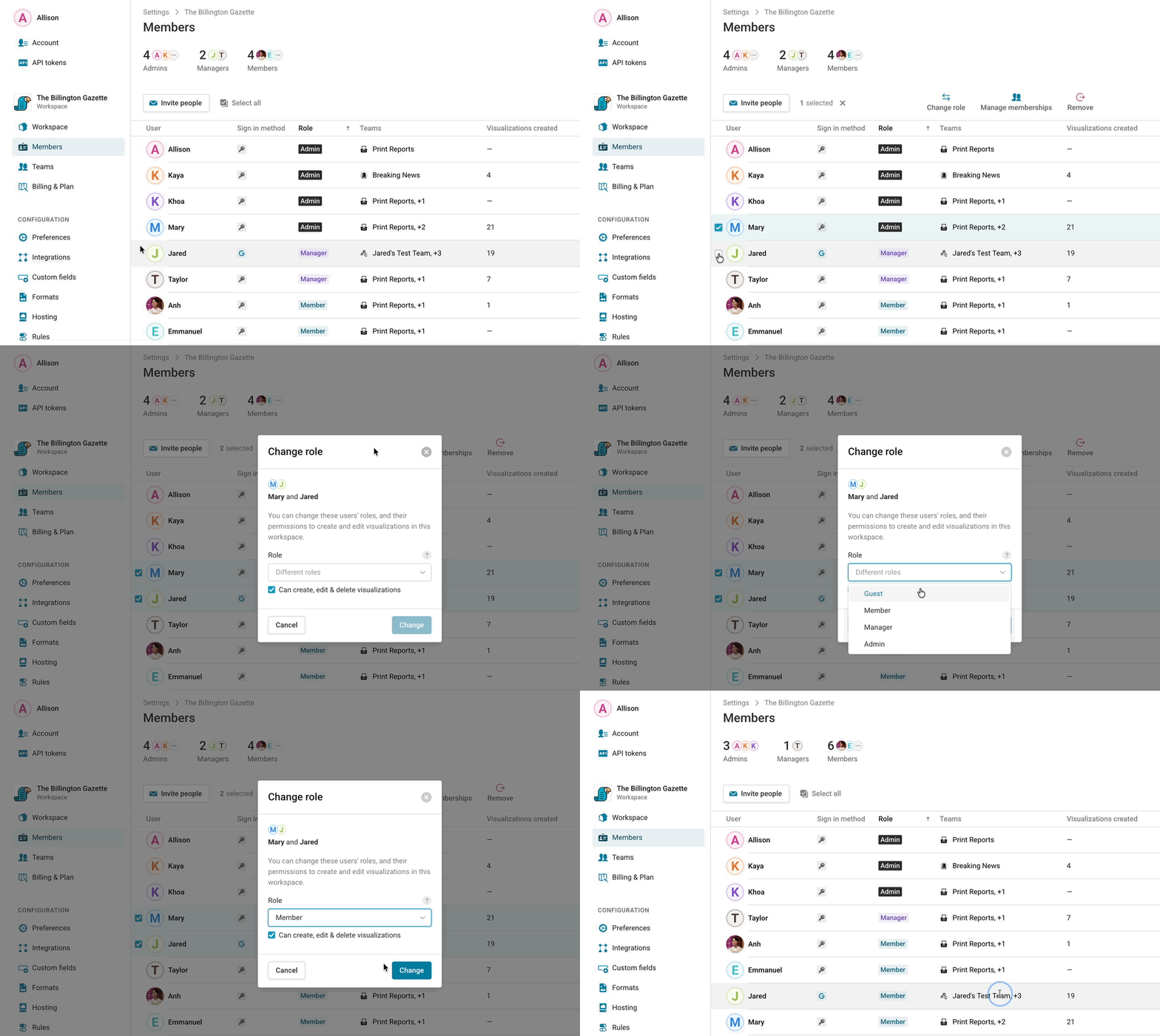
If you're a workspace admin or manager on the workspace or team level, you can change someone's role by going to the members page, and then selecting the relevant member(s), then clicking on Change role. In the popup that follows, select the right role, and then click Change.
Team roles
Team roles are independent of the workspace-level role. For example, a workspace manager can be a team member, or vice versa! On the team level, there's two possible roles: team managers and team member.
- Team managers can edit all preferences for the team, including integrations, custom fields, formats, and hosting. They can also add new team members.
- Team members, on the other hand, can access all of the visualization in the team, but they can't access the team's settings.
Workspace admins, as well as managers of the team or the workspace, can change a user's team role. To do so, go to the team's Members tab, choose the relevant user, and click Change permissions.
Questions you might have
What teams can guest members access?
Guest members will be able to see all teams that they are added to, and only the teams they're added to!
How many admins can we have in one workspace?
A workspace can have as many admins as needed. It can be a good idea to have more than one admin, so that you're covered in case an admin leaves the organization or otherwise loses access to their account.
I'm set as a workspace member, but I should have different permissions. Who can I talk to about changing my role?
Workspace members are managed internally, so you'll want to reach out to an admin or manager in your organization to request your role to be changed.